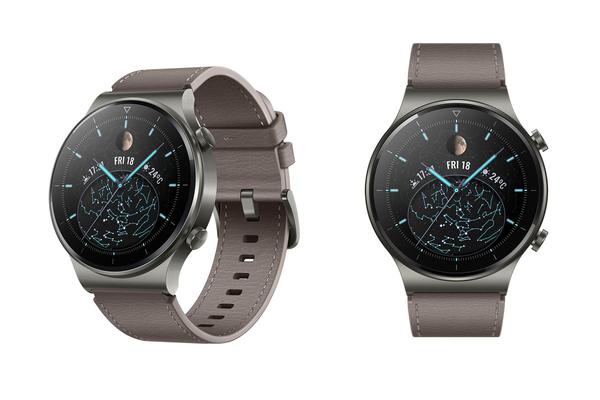
Installing WhatsApp on a Huawei phone can feel confusing at first, especially if you’re used to downloading apps directly from Google Play. Since many Huawei devices no longer support Google Mobile Services, users often turn to sideloading as a reliable alternative. The good news is that sideloading WhatsApp is safe and straightforward when done correctly. With the right steps and a little preparation, you can enjoy full WhatsApp functionality on your Huawei device without complications. Let’s walk through the process clearly and confidently.

Before starting, make sure your Huawei phone is updated to a recent version of EMUI or HarmonyOS and has a stable internet connection. Then, you can try the following ways for how to install whatsapp in huawei phone.
Understand What Sideloading Means for Huawei Users
Sideloading allows you to install WhatsApp directly from its official source instead of relying on Google Play. This approach is common for Huawei users and does not reduce app functionality when done properly. WhatsApp works independently of Google services, which makes it well-suited for Huawei devices.
Enable App Installation from External Sources
To begin, you need to allow your phone to install apps from outside AppGallery. Go to Settings, then Security or Privacy, and look for “Install unknown apps.” Choose the browser you’ll use for downloading WhatsApp and enable permission. This step is essential and only needs to be done once.
Download WhatsApp from the Official Website
Open your mobile browser and visit the official WhatsApp website. Navigate to the Android download section and tap the download button. This ensures you’re getting the latest, secure version directly from WhatsApp. Avoid third-party websites, as unofficial files may pose security risks or cause installation issues.
Install the WhatsApp APK File
Once the download is complete, tap the file from your notification panel or file manager. The installation process will begin automatically. Follow the on-screen instructions and wait for the app to finish installing. This usually takes only a few seconds on most Huawei devices.
Verify Your Phone Number Correctly
After installation, open WhatsApp and agree to the terms of service. Enter your phone number and complete the verification process using the SMS code sent to you. This step works the same way as it does on other Android phones and does not require Google services.
Restore Chats If You Have a Backup
If you previously used WhatsApp on another device, you may be prompted to restore a local backup. Make sure any existing backup files are stored on your Huawei phone before starting the app. Once detected, WhatsApp will restore your chats automatically during setup.
Grant Necessary Permissions for Smooth Performance
WhatsApp will ask for access to contacts, storage, camera, and microphone. Granting these permissions ensures messaging, calls, media sharing, and backups work properly. You can always adjust permissions later through your phone’s settings if needed.
Keep WhatsApp Updated After Sideloading
Since sideloaded apps don’t always update automatically, it’s important to check for updates periodically. WhatsApp may notify you within the app when a new version is available. Or, you can go to AppGallery for WhatsApp updates. Simply download and install the updated file following the same steps to stay secure and enjoy new features.

Sideloading WhatsApp on Huawei devices is a practical and reliable solution for users without Google Play access. By downloading the app from its official source, enabling the correct permissions, and following each step carefully, you can enjoy full WhatsApp functionality without compromise. Once installed, daily use feels no different from any other Android phone. With regular updates and basic maintenance, sideloaded WhatsApp remains secure, stable, and ready to keep you connected anytime, anywhere.